Controller input
Controller input is exposed through robot.controller. The Controller is the
handheld device on your desk, separate from the robot, and its readings come
from its own USB packets. That means robot.controller keeps working even when
the Bluetooth (BLE) link to the robot is down. The data is cached: reading a
property does not block waiting for a new packet.
The controller
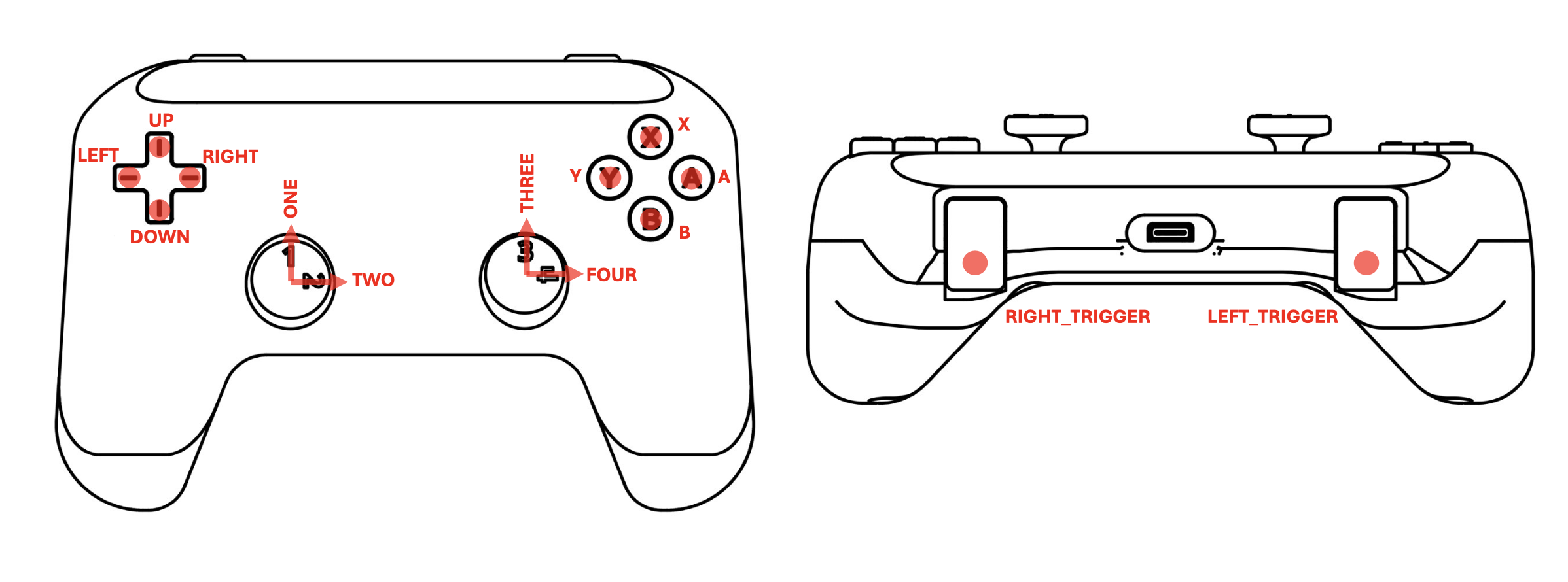
Everything in the diagram is read the same way:
robot.controller.joystick("ONE").value   # a stick axis, -100 to 100
robot.controller.button("A").is_down     # a button, True or False
Controller
You normally use the instance owned by Robot, rather than constructing a
Controller directly.
joystick
Input: an axis name, as a string. Output: the Joystick object for that
axis.
The controller has two physical sticks. MARLIN treats each stick's two directions as separate, single-axis joysticks, so there are four names:
| Name | Physical axis |
|---|---|
"ONE" |
Left stick, up and down |
"TWO" |
Left stick, left and right |
"THREE" |
Right stick, up and down |
"FOUR" |
Right stick, left and right |
Names are case-insensitive, so joystick("four") and joystick("FOUR") are the
same object.
Raises ValueError for any other name. If Python throws a ValueError, check
your spelling.
robot.controller.joystick("FIVE") # ValueError: Unknown joystick 'FIVE'. Expected one of ONE, TWO, THREE, FOUR.
button
Input: a button name, as a string. Output: the Button object for that
name.
Names are converted to uppercase, so button("a") and button("A") are the
same button.
The names are the ones printed on the Controller, so you write in code what you read on the panel. There are ten:
"UP","DOWN","LEFT","RIGHT": the D-pad"X","Y","A","B": the face buttons"LEFT_TRIGGER","RIGHT_TRIGGER": the two triggers
A name outside this list raises ValueError, so a typo stops your program.
Always check your variable spelling.
Unknown button 'TRIGGER_LEFT'. Expected one of UP, DOWN, LEFT, RIGHT, X, Y, A, B, LEFT_TRIGGER, RIGHT_TRIGGER.
Joystick
You normally obtain joysticks from Controller.joystick().
Properties
| Property | Type | Meaning | Value before data arrives |
|---|---|---|---|
name |
str |
The axis name, always the panel number: "ONE", "TWO", "THREE", or "FOUR" |
n/a |
value |
float |
Scaled deflection, -100 to 100 | 0.0 |
raw |
int |
Raw 12-bit ADC reading, 0 to 4095, centre 2048. Advanced use | 2048 |
An ADC turns the voltage from the stick into a number. Most programs use
value and never touch raw.
value is scaled from the project's stick calibration: the measured resting
position reads 0, and the measured ends of travel read -100 and 100. Until you
run Calibrate Sticks, that scaling assumes a perfect stick: centre 2048 and
the full 0–4095 range. A released stick may then read a little off 0, and a
stick at the stop may not quite reach 100. See
Calibrate Sticks. raw is never
scaled or deadzoned.
Which way is positive?
The firmware sets the sign. This page cannot tell you the direction.
Print the value while you move the stick, and match your code to what you observe:
If the robot drives opposite to the stick, negate the value in your code. Do not rewire the stick.
Worked example: one stick, one thruster
def driver(robot):
    while robot.running:
        power = robot.controller.joystick("ONE").value   # -100 to 100
        robot.thruster("M1").set_duty(power)             # same range, so no conversion
Worked example: a dead zone
A stick that is not perfectly centred reports a small non-zero value, so the robot creeps when nobody is touching it. Ignore small values:
def driver(robot):
    while robot.running:
        power = robot.controller.joystick("ONE").value

        if abs(power) < 5:      # abs() ignores the sign: -3 and 3 both count as small
            power = 0

        robot.thruster("M1").set_duty(power)
Raise the 5 if the robot still creeps. Lower it if the stick feels
unresponsive near the centre.
Button
You normally obtain buttons through Controller.button().
is_down: bool
True while the button is currently pressed. This is a level, not a press/release event. MARLIN does not provide a "just pressed" helper. Compare the current value against the previous value, as the example shows.
previous = False
while robot.running:
    current = robot.controller.button("A").is_down
    if current and not previous:
        toggle_arm()
    previous = current
Worked example: hold a trigger to run a thruster
The triggers are read exactly like any other button. They report on or off, not how far you pulled them:
def driver(robot):
    while robot.running:
        if robot.controller.button("RIGHT_TRIGGER").is_down:
            robot.thruster("M8").set_duty(60)
        else:
            robot.thruster("M8").set_duty(0)
Worked example: D-pad nudges
The D-pad is four separate buttons, so you can read more than one at a time: