Pool management
Running the Pool is for game officials and event staff. You do not need this page to write or run a normal robot program.
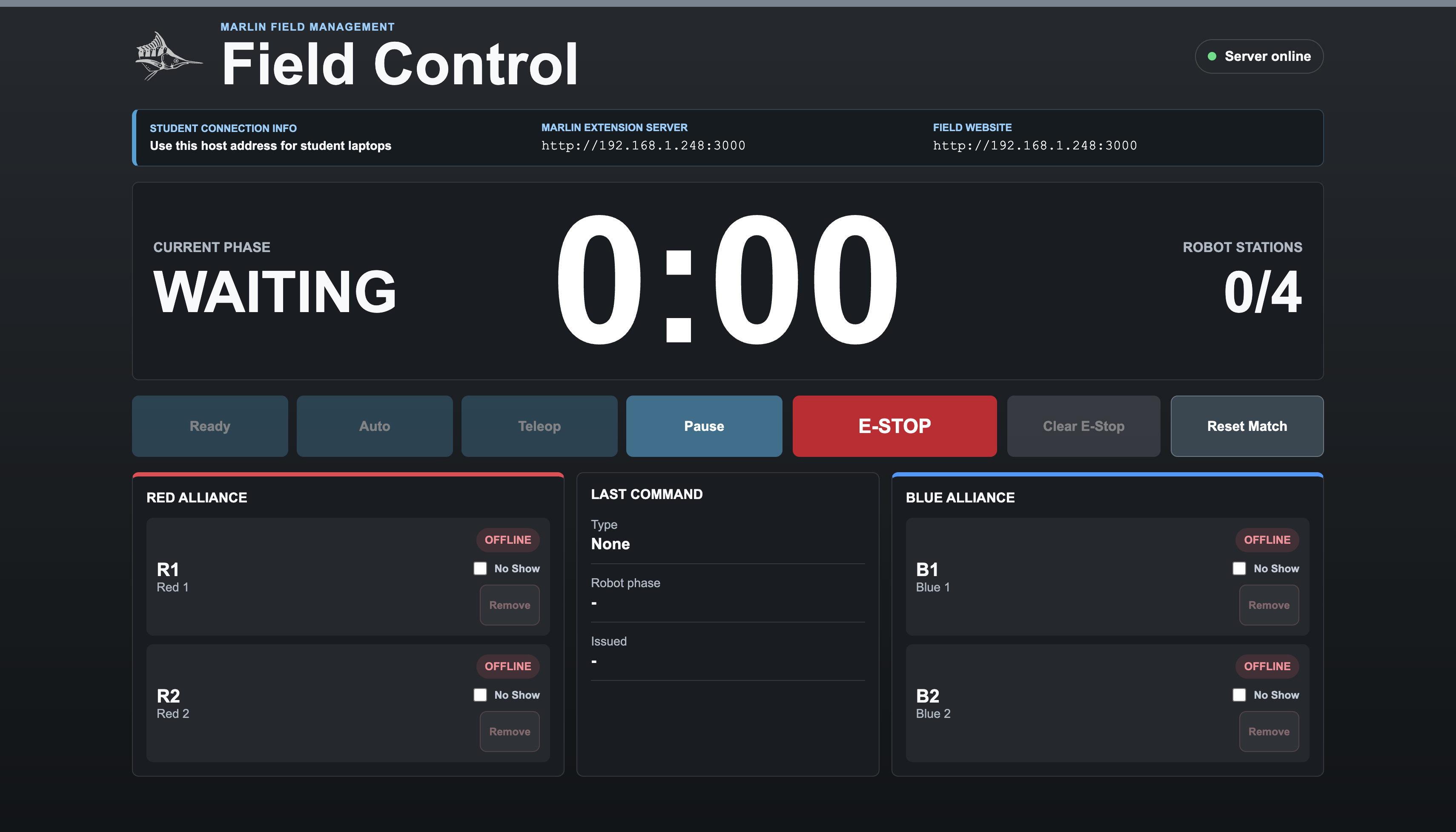
MARLIN PMS (Pool Management Software) is the desktop app for running matches. It runs on the Pool Laptop: it starts the pool server, opens the pool dashboard, tracks driver-station connections, and broadcasts match commands to MARLIN extensions on Team Laptops.
The dashboard labels the two match phases Auton and Driver. These are the same names students see in the extension, and they match the Autonomous Period and Driver Controlled Period of the game manual.
For officials only
Pool controls can affect multiple robots and the safety state of a match. Do not operate these controls unless you are responsible for running the Pool.
How it fits into MARLIN
flowchart LR
    official["Game official"]
    pms["MARLIN PMS"]
    pool["Pool server"]
    extA["MARLIN extension"]
    extB["MARLIN extension"]
    robotA["Robot A"]
    robotB["Robot B"]

    official --> pms
    pms --> pool
    pool <--> extA
    pool <--> extB
    extA --> robotA
    extB --> robotB
The pool server is the authority for match-level state:
- registering driver stations
- identifying team, alliance, and station assignments
- starting the Autonomous Period and the Driver Controlled Period
- pausing and resuming an active phase
- sending E-Stop when needed
- keeping event operation separate from student robot code.
Students still run their code from the MARLIN extension. The pool dashboard does not edit or open students' programs. Starting a phase launches the program already open on each laptop.
Install MARLIN PMS
Your event organiser will provide the MARLIN PMS installer directly.
| Platform | Download | Notes |
|---|---|---|
| macOS | .dmg |
Open the disk image, then drag or open MARLIN PMS |
| Windows | .exe installer |
Run the installer on the Pool Laptop |
The release files are unsigned unless your event organiser says otherwise. Your operating system may show a security prompt the first time you open the app.
Start the pool server
The Pool Laptop is the computer running MARLIN PMS. There is one per Pool.
- Connect the Pool Laptop and the Team Laptops to the same Wi-Fi or Ethernet network.
- Open MARLIN PMS on the Pool Laptop.
- Keep the app open while matches are running.
- In the dashboard, find the MARLIN extension server address.
- Give that address to the teams using the MARLIN extension.
MARLIN PMS starts the backend server on port 3000 and serves the dashboard
from the same port. Browser clients can also open the pool dashboard directly
from another laptop on the same network.
Default address format:
| Use | URL |
|---|---|
| Pool dashboard | http://HOST_IP_HERE:3000 |
| MARLIN extension server | http://HOST_IP_HERE:3000 |

Use the Pool Laptop's IP shown in the dashboard, not localhost, when a Team
Laptop is connecting from another computer.
Dashboard areas
The pool dashboard contains:
| Area | Use it for |
|---|---|
| Server status | Confirming the dashboard is connected to the local pool server |
| Student connection info | Copying the Pool Laptop address for Team Laptops |
| Current phase and timer | Seeing the active match phase and remaining time |
| Phase controls | Starting Auton, Driver, Pause/Resume, and Reset Match |
| E-Stop controls | Triggering or clearing pool E-Stop |
| Robot stations | Tracking Red and Blue station connection status |
| Last Command | Checking the most recent command sent to extensions |
Keep the dashboard visible to the official operating the match, especially the timer, station list, and E-Stop controls.
Driver-station setup
Each Team Laptop that should receive match commands needs matching settings in the MARLIN extension.
| Extension field | Purpose |
|---|---|
| MARLIN server | Pool server URL, such as http://192.168.1.25:3000 |
| Team number | Team or robot identifier |
| Station | Driver station position (Red 1, Red 2, Blue 1, Blue 2) |
There is no separate alliance field in the extension. The station name encodes the alliance. The extension reads Red or Blue from the station name before it registers with the pool server.
After entering these values, click Save in the extension. The team should appear in the matching station on the pool dashboard.
If the pool server is unavailable or the URL is wrong, the extension may show a connection timeout in the MARLIN Console. Clear the server URL when practising without a pool server.
Station readiness
The pool server starts in WAITING. It becomes READY only after every
default station is either connected or marked No Show.
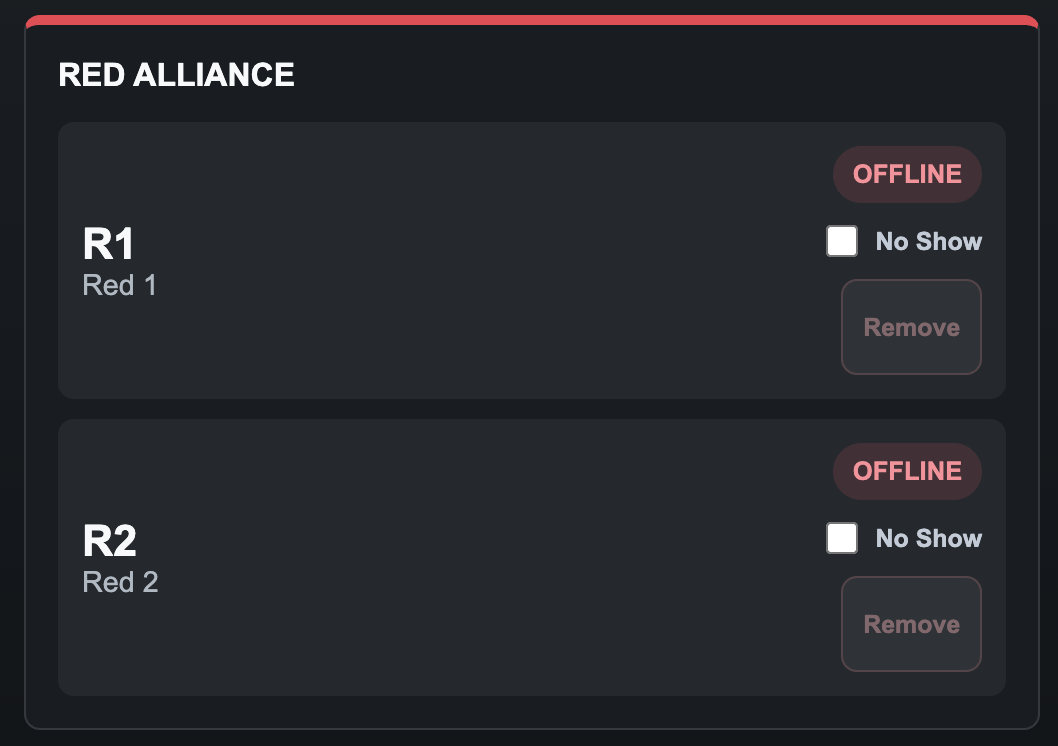
Default stations:
| Alliance | Stations |
|---|---|
| Red | Red 1, Red 2 |
| Blue | Blue 1, Blue 2 |
Use No Show when a scheduled station will not participate in the match. Use Remove when a laptop registered to the wrong station and should reconnect with corrected settings.
An Elimination Match is 1-v-1, so only Red 1 and Blue 1 are used. Mark
Red 2 and Blue 2 as No Show to reach READY.
Pre-match checklist
Before starting a match:
- Confirm the dashboard does not show the Server offline indicator.
- Confirm every expected station is connected or marked No Show.
- Confirm each station is assigned to the correct alliance and position.
- Ask teams to verify their MARLIN project is open and their Controller is connected.
- Confirm the Pool is clear and safe.
- Keep the E-Stop control visible to the official operating the match.
Do not start the Autonomous Period until the dashboard is in READY and the
Pool is safe.
Match flow
flowchart TD
    waiting["WAITING"]
    ready["READY"]
    auton["AUTON"]
    hold["0:00 hold<br/>5 seconds"]
    pause["PAUSE"]
    driver["DRIVER"]
    estop["ESTOP"]

    waiting -->|"all stations ready or No Show"| ready
    ready -->|"Start Auton"| auton
    auton -->|"20 second timer ends"| hold
    hold --> pause
    pause -->|"official presses Driver or Resume"| driver
    driver -->|"2:40 timer ends"| hold
    ready -->|"E-Stop"| estop
    auton -->|"E-Stop"| estop
    pause -->|"E-Stop"| estop
    driver -->|"E-Stop"| estop
    estop -->|"Clear E-Stop"| ready
Default timing:
| Segment | Duration | Sent to extensions as |
|---|---|---|
| Autonomous Period | 20 seconds | auton |
| Hold after Autonomous | untimed | pause |
| Driver Controlled Period | 2 minutes 40 seconds | driver |
That is three minutes of playtime. The untimed hold between the two periods does not count towards it.
The 5-second scoring hold
At the end of each Match Period, the dashboard timer holds the period name and
0:00 for five seconds before it queues the next period. This is the scoring
grace period in <SC1>, and it is the visual cue referees and teams use: what
comes to rest inside those five seconds is what gets scored.
It is a hold on the timer, not on the match. Robot output is already idled
the instant the period ends, so a robot cannot move during the hold. The
<SC1> penalty for exploiting the grace period is not something a team can
engineer around in software.
The intermission
The Autonomous Period ends into an untimed hold, which the game manual calls
the Intermission Period. The Driver Controlled Period does not start by
itself. The pool server waits in PAUSE, with Driver queued up, while the
Scorekeeper and Head Referees record the Autonomous Bonus, and starts when an
official presses Driver or Resume.
During the hold and during Pause, robot output should be paused. Reset Match cancels
active timers, clears Pause and E-Stop state, and returns the pool server to
READY or WAITING without deleting team registrations.
Pause and E-Stop can interrupt the normal flow:
- Pause freezes the current phase and timer. Pressing Pause again resumes the interrupted phase.
- E-Stop can be triggered at any point in a match. Clearing E-Stop returns
the pool server to
READY.
E-Stop behaviour
Pool E-Stop is a match-level safety control. When an official triggers E-Stop, the pool server broadcasts the stop command to connected MARLIN extensions. Each extension then sends the local E-Stop command to its Controller.
E-Stop reaches every connected station at once. There is no per-team stop, so E-Stop is not the tool for applying a Disablement to a single Team: the Head Referee does that by telling the Drive Team Members to put their controllers down.
Clear E-Stop only when:
- the Pool is safe
- the official has identified why E-Stop was triggered
- affected teams know the stop is being cleared
- the robot area is ready for the next match or a reset.
If there is any doubt, keep E-Stop active.
Between matches
After a match:
- Confirm robot output is stopped.
- Use Reset Match when the Pool is ready for the next run.
- Clear or update station assignments if teams are changing.
- Ask incoming teams to connect their MARLIN extensions.
- Wait for every expected station to connect or be marked No Show.
Troubleshooting
| Symptom | What to check |
|---|---|
| A team does not appear connected | Confirm the extension server URL uses port 3000 and the correct Pool Laptop IP |
| A laptop opened the dashboard but cannot receive commands | The dashboard URL is not enough; the extension must also connect to the backend URL |
| A station cannot register | Check whether another laptop is already registered to that alliance and station |
| The match will not start | Mark missing stations No Show or wait for them to connect |
| Clients cannot reach the Pool Laptop | Check Wi-Fi/Ethernet, the Pool Laptop's IP address, and firewall permissions for port 3000 |
| Pool server errors repeat in a student extension | Clear the pool server URL when practising without a pool server |
Technical event mapping
Officials usually do not need this table during a match, but it helps explain what the pool server sends to each MARLIN extension.
| Pool state | Sent to the extension as |
|---|---|
WAITING |
pause |
READY |
pause |
AUTON |
auton |
DRIVER |
driver |
PAUSE |
pause |
E-Stop is not a pool state in this mapping. The pool server sends E-Stop and Clear E-Stop as their own command types, so an E-Stop reaches the extension regardless of which state the pool server is in.