Install MARLIN
MARLIN has one piece you install yourself:
- the MARLIN VS Code extension, which opens the control station, talks to the Controller over USB, and runs your Python programs.
The extension bundles the MARLIN Python API and adds it to your Python path
automatically. You do not install the marlin package yourself, and there is
nothing to fetch with pip.
flowchart LR
    marketplace["VS Code Marketplace"]
    vscode["VS Code"]
    api["MARLIN API\nbundled with the extension"]
    script["Your program"]

    marketplace --> vscode
    vscode --> api
    api --> script
    vscode --> script
1. Prerequisites: Install VS Code and Python
You need Python 3.10 or newer and VS Code 1.120 or newer already installed. Install the Python extension for VS Code too. The MARLIN extension follows whichever interpreter the Python extension has selected.
For VS Code, download the latest version from the VS Code download page.
For Python, download Python 3.12. Any version from 3.10 up will work; 3.12 is the one we test against.
Refer to the respective installation instructions.
2. Install the VS Code extension
Install the MARLIN extension from the Visual Studio Code Marketplace:
- Open VS Code.
- Open the Extensions view (the icon with four squares in the activity bar, or Ctrl+Shift+X).
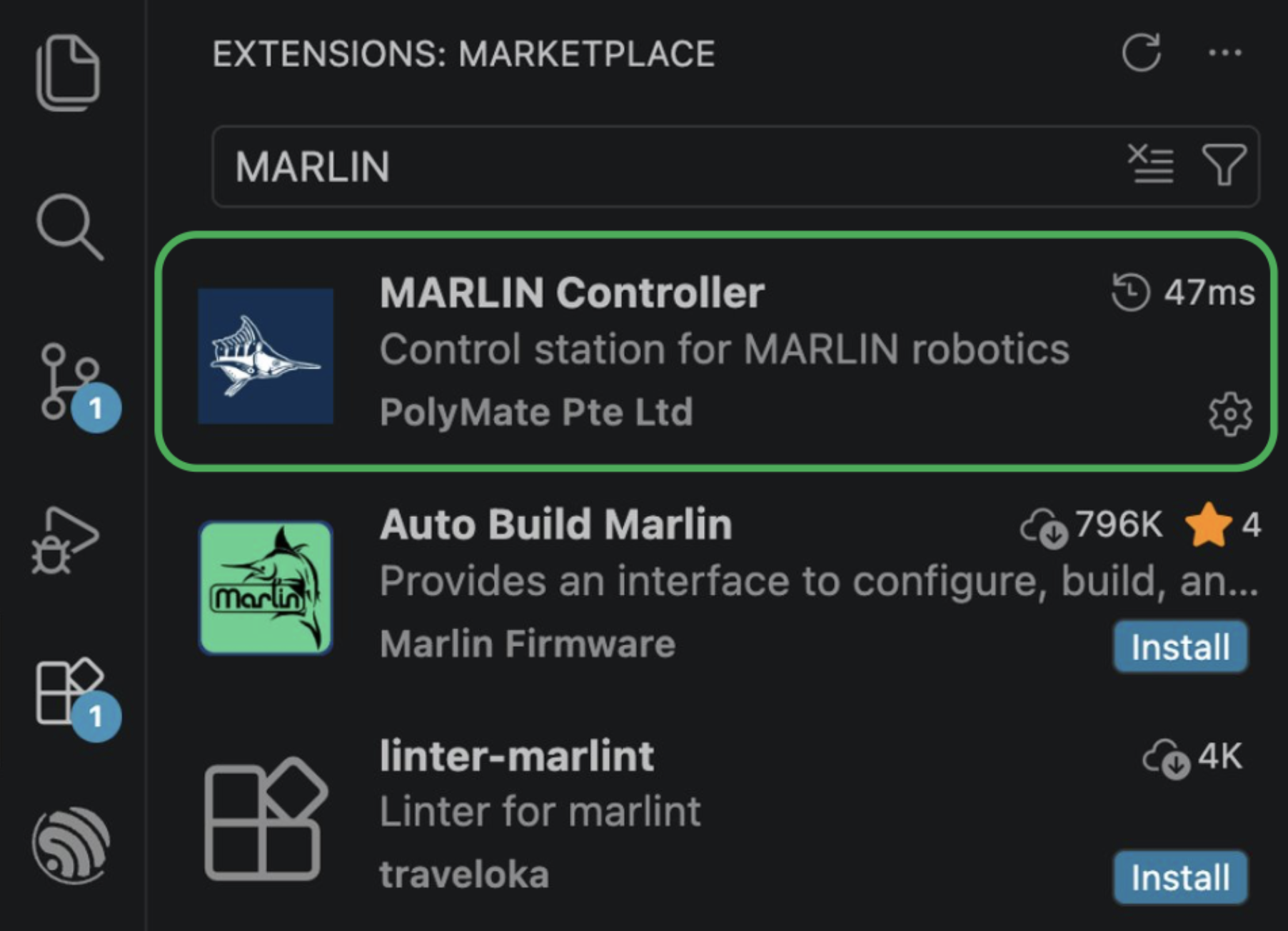
- Search for
MARLIN. - Find MARLIN Controller by PolyMate Pte Ltd and click Install.
- Reload VS Code if prompted.
Check the publisher
Searching MARLIN also returns Auto Build Marlin, an unrelated
3D-printer extension with far more installs. It is usually the first
result. The one you want is published by PolyMate Pte Ltd. Check the
publisher name, not the position in the list.
After installation, the MARLIN icon appears in the VS Code activity bar, the strip of icons down the far left edge of the window. It looks like a marlin:

Click that icon to open the control station. Once you have also connected a Controller and opened a project, the window looks like this, with the control station on the left and the MARLIN Console docked at the bottom:
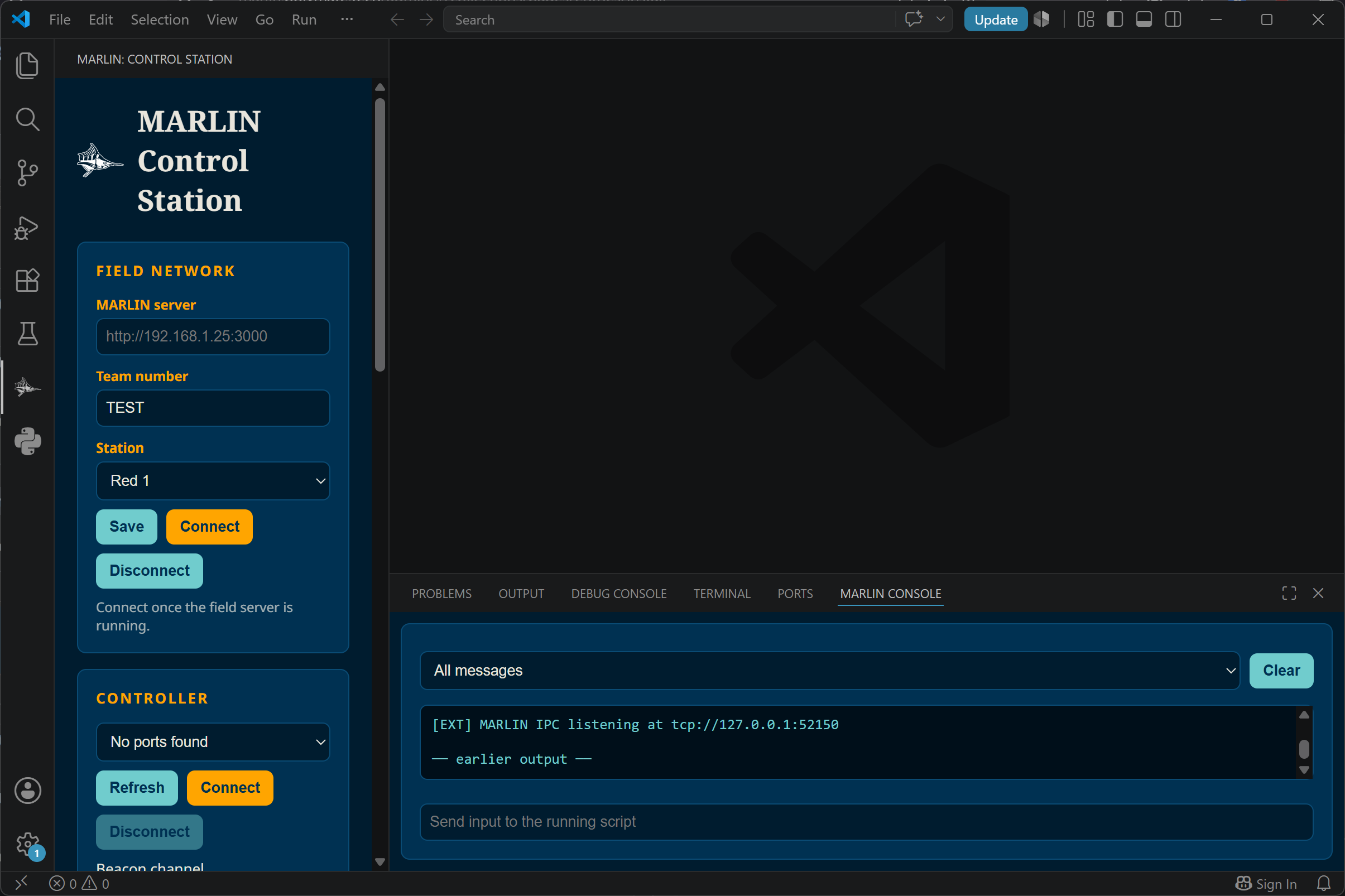
The Field Network values and the console panel shown here are not filled in automatically. Your window will look emptier until you finish the steps below.
3. Check the Python install
You do not install a separate MARLIN package for normal use. The extension
bundles the API and adds it to PYTHONPATH for both scripts and VS Code's
integrated terminal. Open a terminal inside VS Code (with the MARLIN extension
installed and active) and check:
On macOS and Linux use python3. On Windows, python3 often opens the
Microsoft Store instead of running anything. Use python or py -3.
Run this check using the same Python executable that VS Code will use to launch your program. If it fails, confirm the interpreter is Python 3.10 or newer (see step 1) and that the MARLIN extension is installed and enabled.
4. Select the Python executable in VS Code
If the extension cannot find the Python environment you want it to use, set the extension's Python path:
-
Open VS Code settings.
![The VS Code manage menu, opened from the gear icon at the bottom of the activity bar. The gear icon is circled in green and the Settings entry in the menu is outlined in green, above Extensions and below Profiles.]
-
Search for Marlin-controller: Python Path.
![The VS Code Settings tab with "Marlin-controller: Python Path" typed in the search box and 3 settings found. The sidebar shows Extensions, MARLIN Controller, and the setting is listed with its description and an empty text box beneath it.]
-
Enter the full path to the Python executable that should run your program.
Leave this setting blank to follow the interpreter selected in the Python extension, which is the recommended setup. If you are not sure which Python executable to use, ask your instructor which environment should run your robot code.
How to find your Python path
In a terminal where import marlin works, run:
Copy the printed path into Marlin-controller: Python Path if the extension cannot find the right environment automatically.
What to do next
Installation is done. To connect the Controller and robot brain and start a match phase, follow Run your program.
Then read Your first MARLIN program, and use the extension UI tour to learn what each control station section does.