Setting Up MARLIN
Now that your robot is built, it is time to set up the MARLIN VS Code extension. This page will guide you through the installation process on your laptop. MARLIN runs on Windows 10 or 11, and on macOS Monterey (12) or later. Linux is not supported.
1. Installing Python
Section titled “1. Installing Python”To use MARLIN, you need to have Python 3.10 or newer installed.
Install Python. Any version from 3.10 up will work. Follow the installation instructions.
2. Installing VS Code
Section titled “2. Installing VS Code”To use MARLIN, you need to have VS Code 1.120 or newer installed. Download the latest version from the VS Code download page. Follow the installation instructions.
3. Installing MARLIN
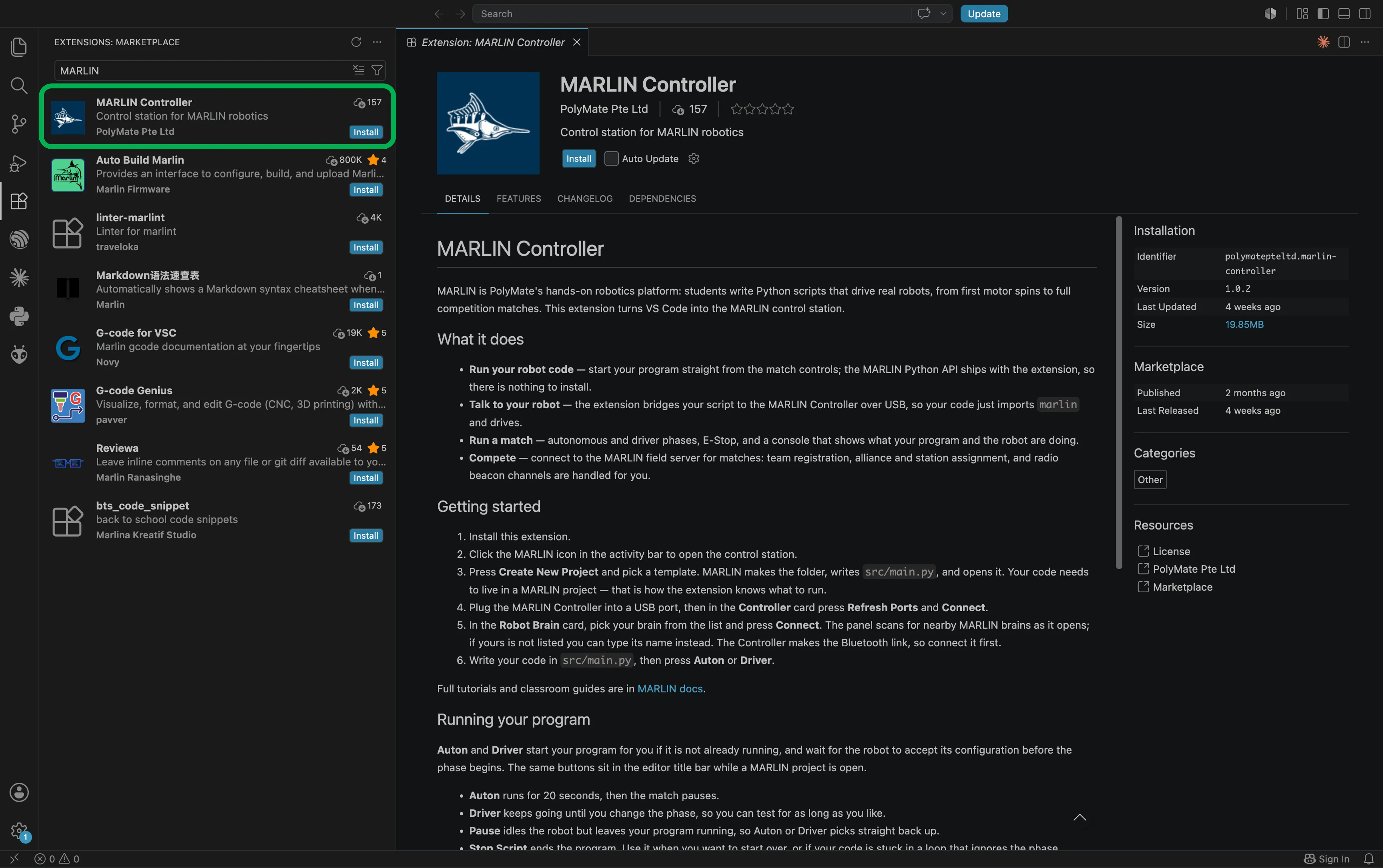
Section titled “3. Installing MARLIN”Install the MARLIN extension from the VS Code Marketplace:
- Open VS Code.
- Open the Extensions view (the icon with four squares in the activity bar, or Ctrl+Shift+X).
- Search for
MARLIN. - Find MARLIN Controller by PolyMate Pte Ltd and click Install.
- Reload VS Code if prompted.
After installation, the MARLIN icon appears in the VS Code activity bar, the strip of icons down the far left edge of the window. Click on the fish icon.
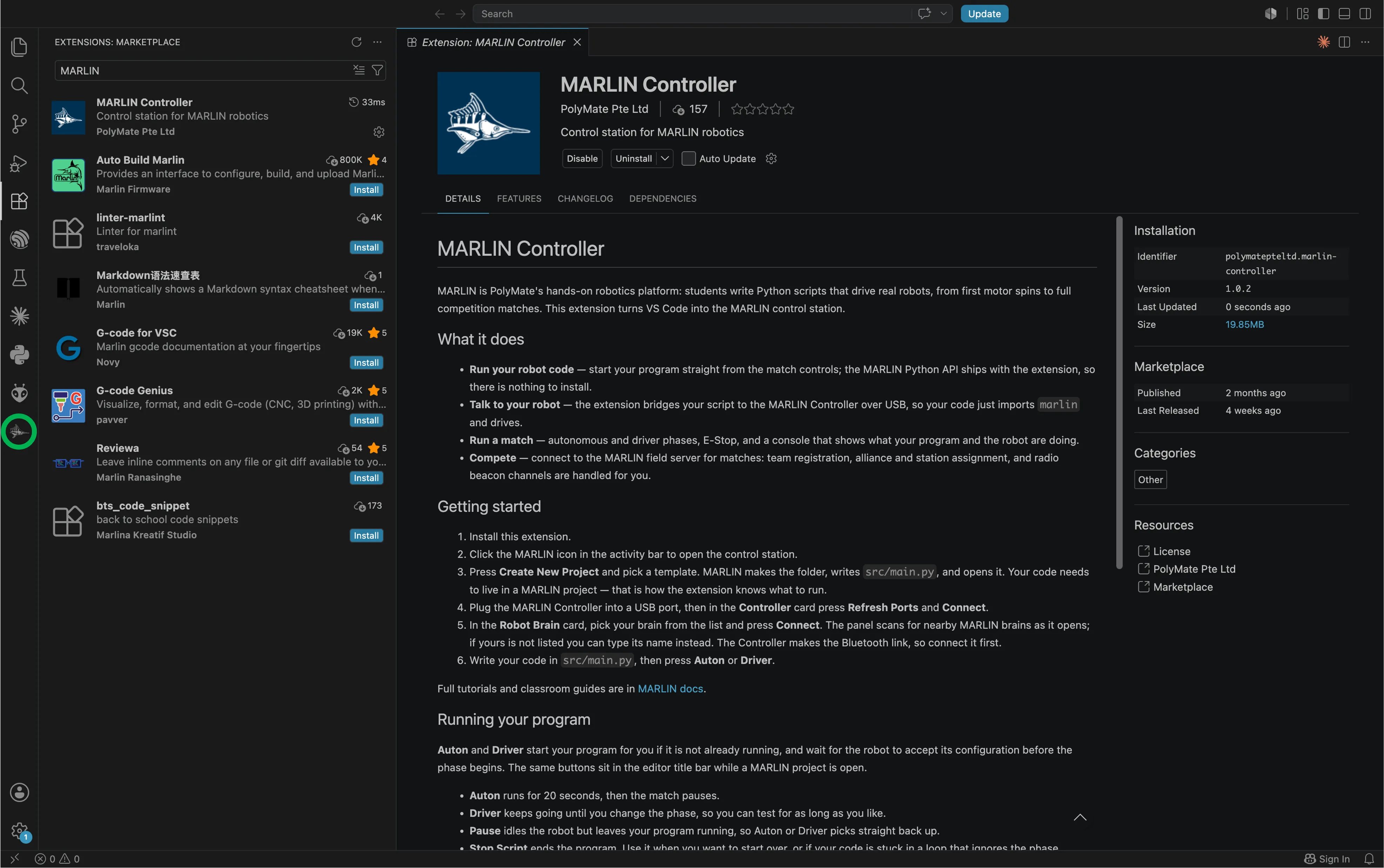
This will bring you to the MARLIN Control Station.
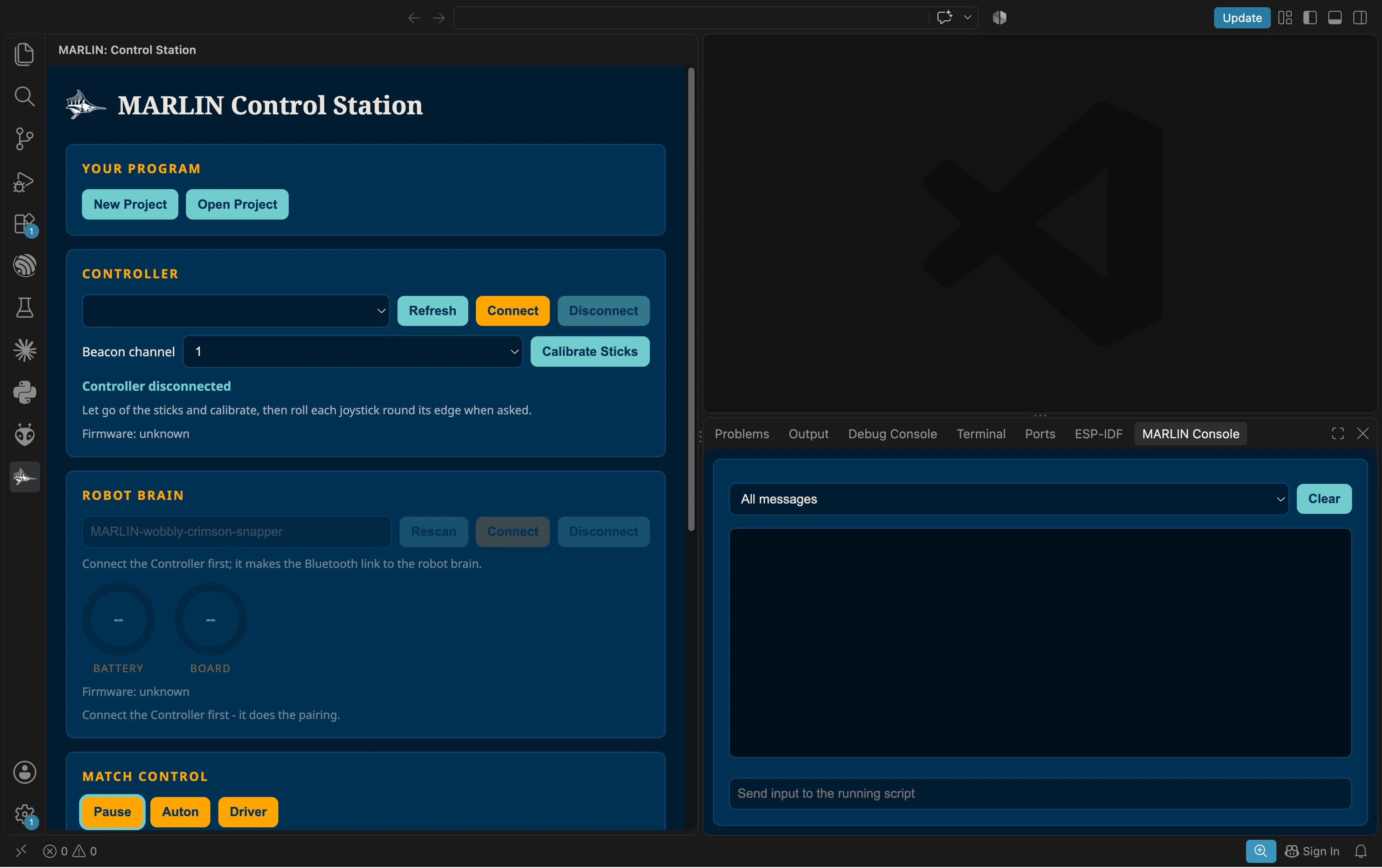
Congratulations! You have successfully installed MARLIN on your laptop.
For school IT
Section titled “For school IT”The MARLIN Controller extension and the MARLIN Python API are free for students, educators and schools using MARLIN. They are closed source; the licence is in the extension’s LICENSE.txt. The extension sends no usage data. It talks to the Robot through the Controller (USB and Bluetooth), to your Python program over a local connection on the laptop (port 5172), and to a Pool Server only when you enter its address at a competition, on the same Wi-Fi network.
Next: learn the control station and connect your robot in the Extension Walkthrough.